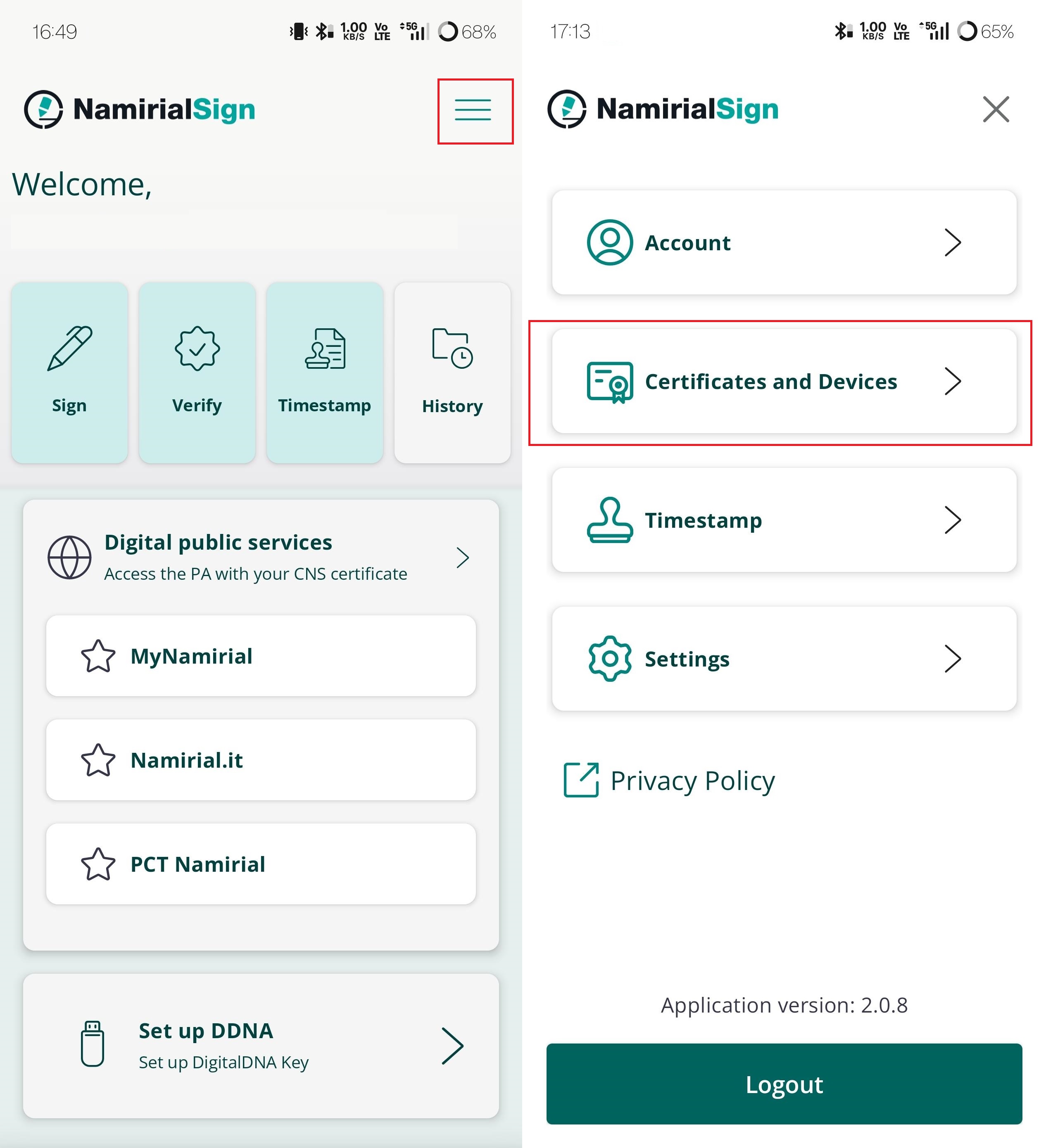
Namirial Sign mobile allows you to use Namirial Remote signatures. This page will help you configure them. To do so, you need to go to "Certificates and Devices", by opening the menu on the top-right of the homepage.
In case you have already configured a remote signature, or you have paired a DigitalDNA key, you will find your certificates listed.
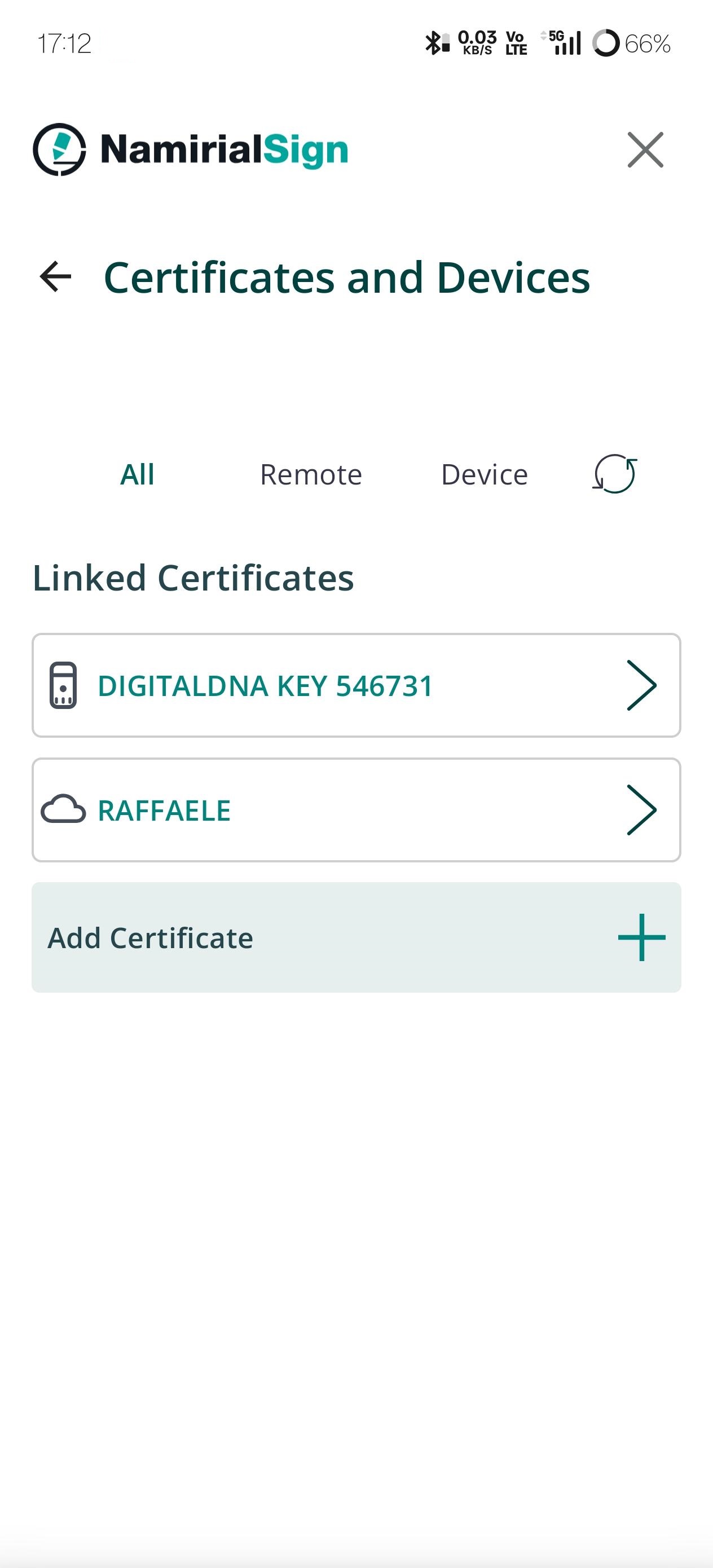
To add a remote signature, you can tap on Add Certificate and then select Add Remote Certificate.
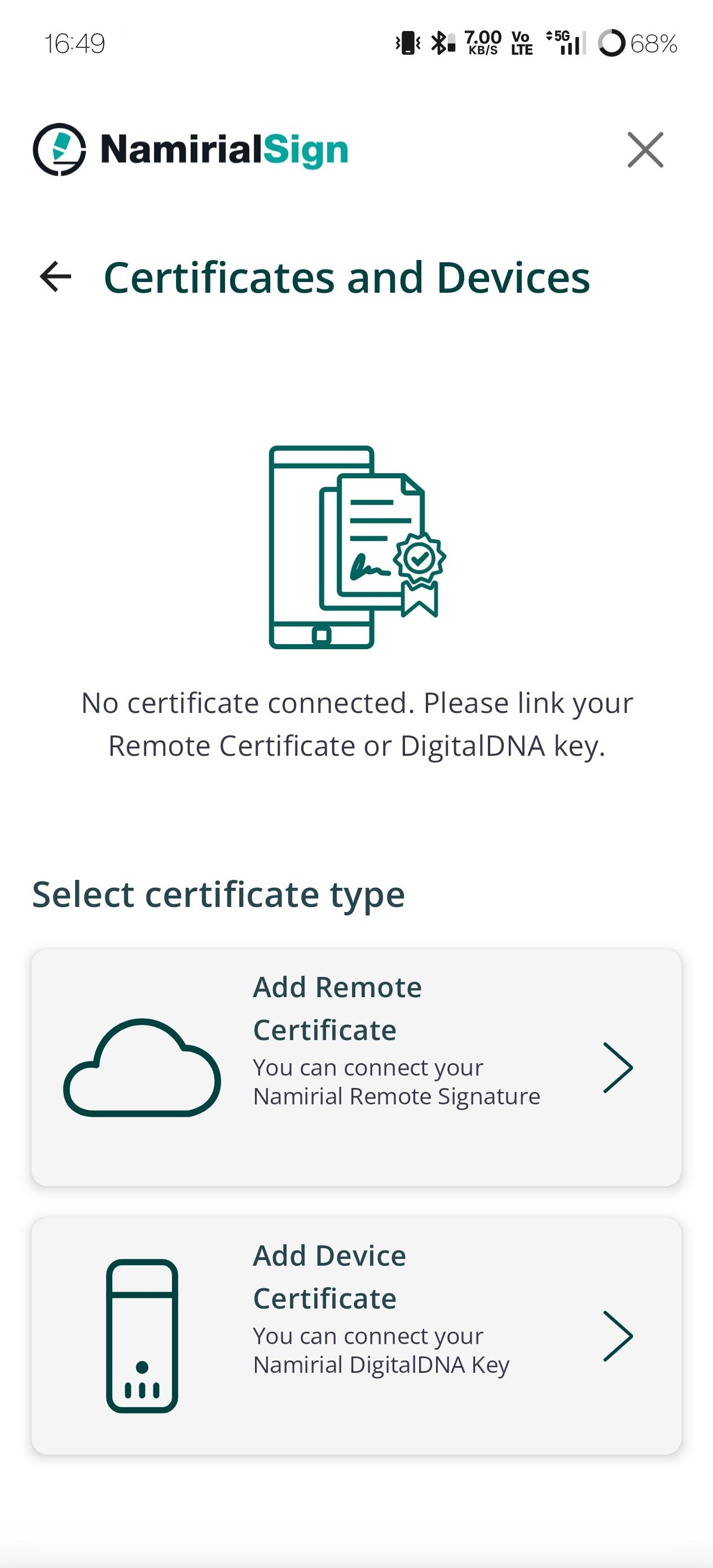
In case you have not configured any certifiacare yet, you can directly tap on Add Remote Certificate as the following screen will appear:
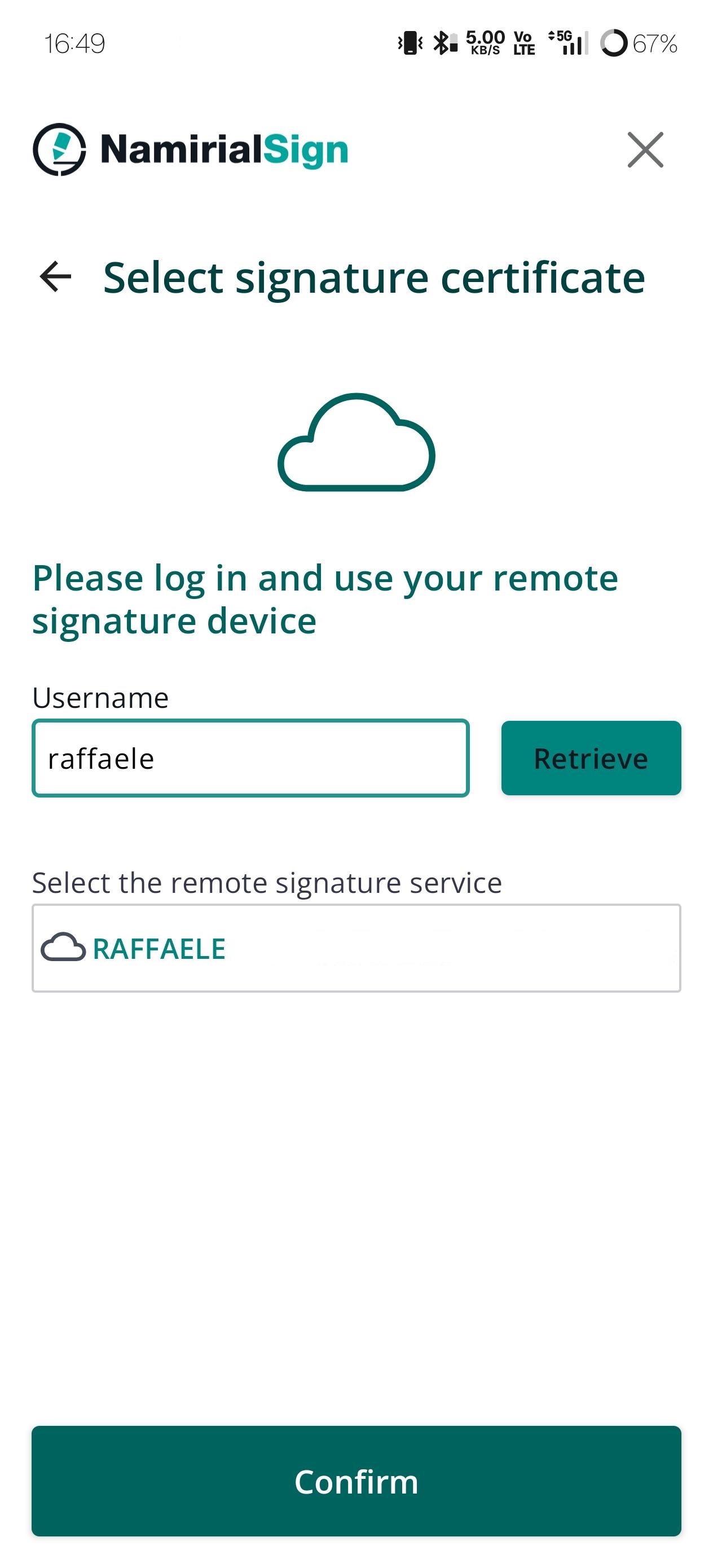
In the next screen, just type your Username, tap on Retrieve and then on Confirm.
In the Certificates and Devices section, as already shown above, you can find all your configured certificates. The remote certificates are identified by a cloud icon. By selecting one of them, you will see the details.
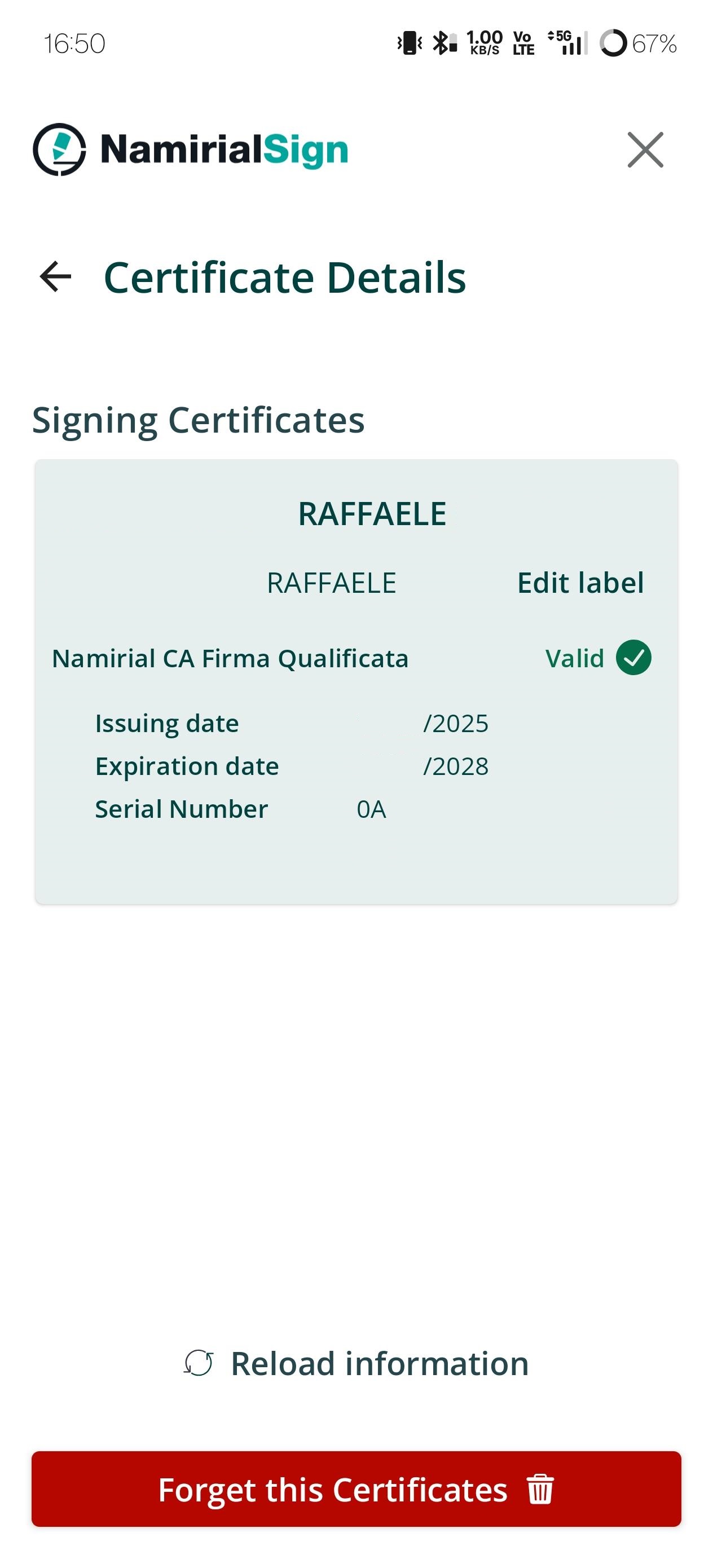
There you can:
- Assign a custom name by tapping Edit label
- Remove the certificate by tapping Forget this Certificate
If the problem persists